
Staff & schedule
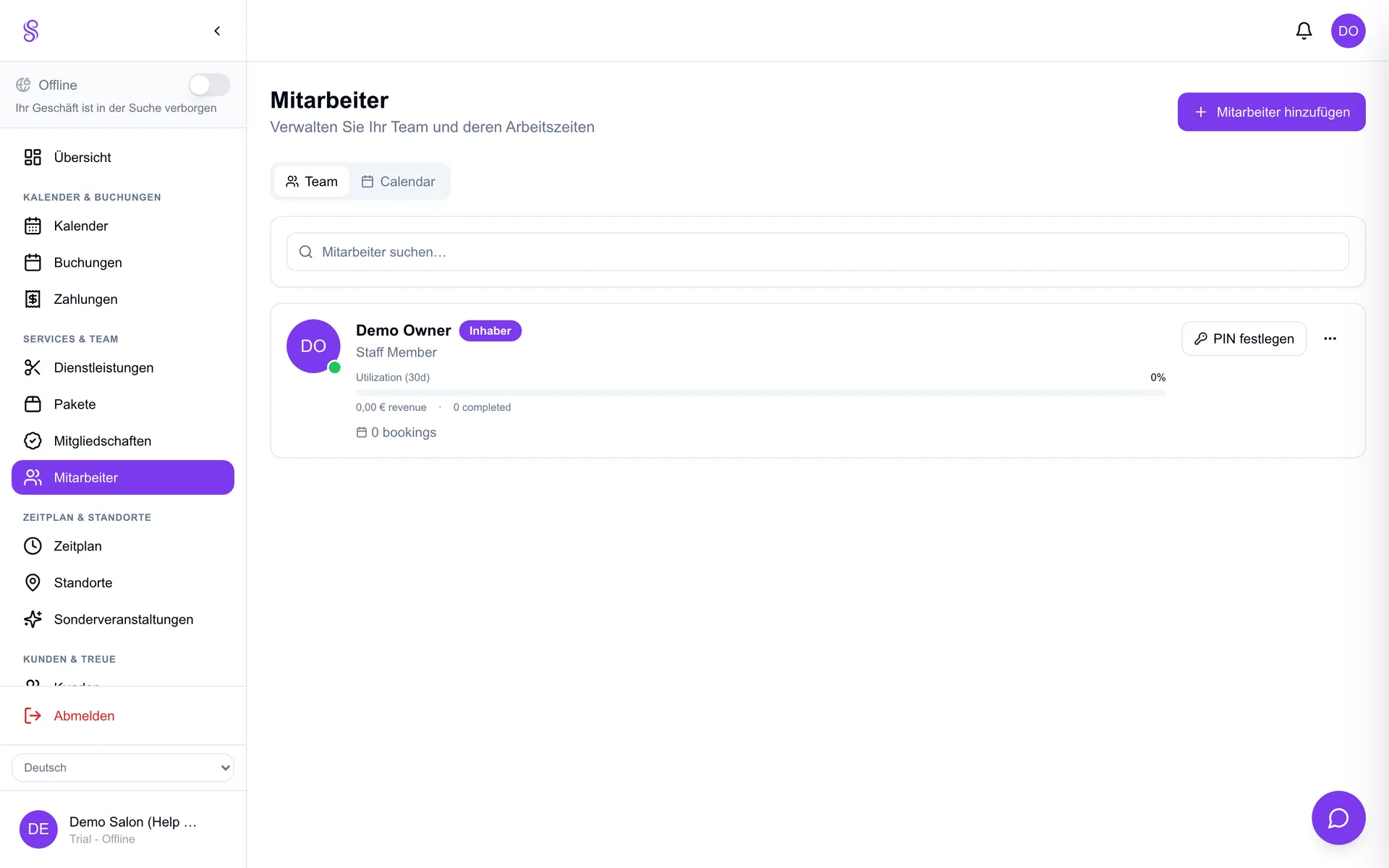
Adding staff
Adding your team gives each person their own login with permissions scoped to their role, so staff see the calendar and POS but not owner-only areas like billing. It also makes the calendar and reports attribute work and sales to the right person.
▶Video tutorial
How to set it up
- 1
Open Staff → Add member
Go to Staff in the sidebar and click Add.
- 2
Enter name, photo and role
The photo shows on the booking page; the role decides what they can access.
- 3
Invite them to log in
Send the invite so they can set a password and access their scoped dashboard.
- 4
Save
They now appear on the calendar and booking page and can be assigned services and hours.
Good to know
- Roles keep billing and owner settings private from staff.
- A staff photo on the booking page builds customer trust.
- Add staff before assigning services and working hours.